
Front End Performance Monitoring: A Production Checklist
Set up front end performance monitoring with field Web Vitals, browser errors, and request traces. Use this checklist to find the cause of slow pages.
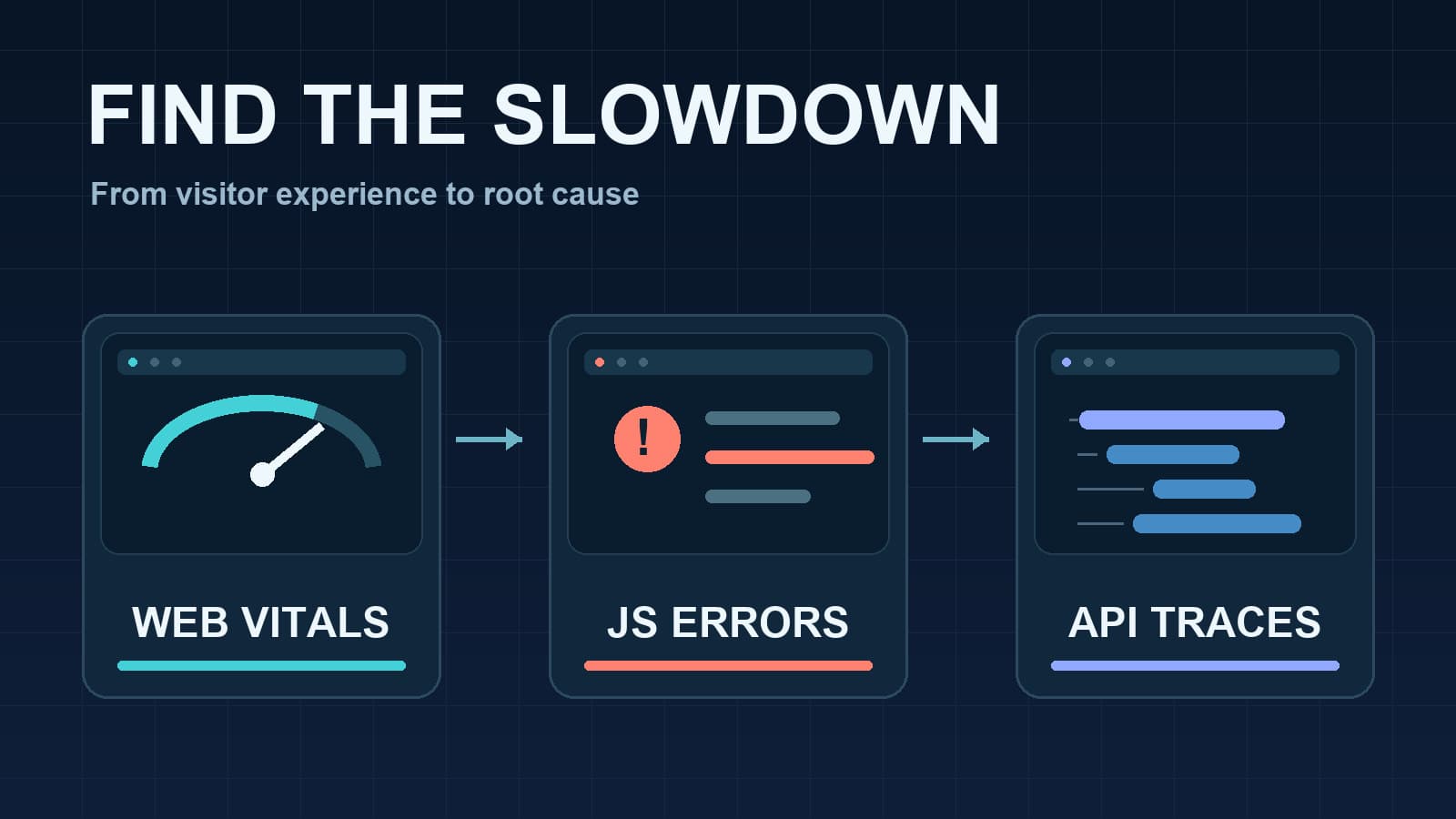
Front end performance monitoring shows what a page does in a real visitor's browser. A fast server response can still lead to a slow page. JavaScript can block an interaction, an image can delay rendering, or a request can fail after the page loads.
Start with three signals: field Web Vitals, browser errors, and request traces. Use lab tests to reproduce a problem. Use field data to decide which real users and routes need attention. This guide gives you a small setup and a way to connect each symptom to evidence.
Choose the signal that answers your question
| Question | Start with | What it can tell you |
|---|---|---|
| Does the page feel slow to real users? | Field Web Vitals by route and device | Which experience fails, and how often |
| Did JavaScript fail? | Browser errors with a release and readable stack | Which code path failed after deployment |
| Did an API call delay the page? | Browser request evidence and a backend trace | Where the request spent time |
| Can you reproduce a slow page? | A lab run with browser developer tools | Which resource or task delayed this test run |
Field data and lab data answer different questions. A lab run uses one controlled browser and network. Field data shows actual visitors with different devices and connections. Google's Core Web Vitals guidance recommends judging field performance at the 75th percentile, with mobile and desktop measured separately.
Tracekit's Browser SDK captures errors and request breadcrumbs. It can add trace context to configured requests. It does not automatically collect Core Web Vitals. Add a separate field measurement path if you need LCP, INP, and CLS.
Measure the three Core Web Vitals in the field
Google defines these current Core Web Vitals:
| Metric | What it measures | Good threshold at the 75th percentile |
|---|---|---|
| Largest Contentful Paint (LCP) | When the largest visible content appears | 2.5 seconds or less |
| Interaction to Next Paint (INP) | How quickly the page responds to interactions | 200 milliseconds or less |
| Cumulative Layout Shift (CLS) | How much visible content moves unexpectedly | 0.1 or less |
The thresholds come from Google's Web Vitals guide. LCP and INP are time values. CLS is a score without a time unit.
The official web-vitals library provides callbacks for these values. This example sends them to your own endpoint. Create that endpoint and a storage policy before you deploy the code. It is not a Tracekit endpoint.
npm install web-vitals
import { onCLS, onINP, onLCP } from 'web-vitals';

function reportVital(metric: {
  name: string;
  value: number;
  rating: string;
  id: string;
}) {
  const body = JSON.stringify({
    name: metric.name,
    value: metric.value,
    rating: metric.rating,
    id: metric.id,
    path: window.location.pathname,
  });

  void fetch('/api/web-vitals', {
    method: 'POST',
    headers: { 'content-type': 'application/json' },
    body,
    keepalive: true,
  }).catch(() => {
    // Do not block the page when measurement delivery fails.
  });
}

onLCP(reportVital);
onINP(reportVital);
onCLS(reportVital);
The receiving route must validate names and values. It should group paths into route patterns, remove personal data, and deduplicate repeated metric IDs. Measure delivery failures too. A missing metric is not proof that the page was fast. The library's attribution build can help identify an element or interaction when a basic value is not enough.
Segment before you set an alert
A site-wide average can hide one slow checkout route. Use the same small set of dimensions for every chart:
- Route pattern, such as
/products/:id, rather than every full URL. - Mobile or desktop device class.
- Release identifier.
- A bounded country or network group only when it helps a decision.
Start with the 75th percentile of LCP, INP, and CLS for routes with enough visits to support a stable comparison. Compare a release with the previous release and the same device class. Keep sample counts beside percentiles. Do not alert on one sparse page view.
Run a lab test when a field segment worsens. Inspect the page with a tool such as PageSpeed Insights or browser developer tools. Then return to field data to confirm that the fix helped visitors.
Capture browser failures with release context
Web Vitals do not explain a failed checkout button. Capture uncaught errors and unhandled promise rejections. Upload source maps so production stack frames point to readable code.
Tracekit's Browser SDK supports error capture, breadcrumbs, a release value, and trace context for selected requests:
import { init } from '@tracekit/browser';

init({
  apiKey: 'your-public-project-key',
  serviceName: 'storefront',
  release: '2026.10.20',
  environment: 'production',
  tracePropagationTargets: ['https://api.example.com'],
});
Replace the key, release, and API origin with your deployment values. The browser package records uncaught errors and unhandled rejections after init(). It adds a traceparent header to matching requests. Your API must allow that header through its cross-origin policy, and the backend must preserve trace context. The Browser SDK reference explains the options. The source map guide covers readable stack traces.
Use the same release identifier in the browser and backend when you can. Compare error frequency before and after that release. Do not treat an error count alone as a user impact score. A frequently retried background request and a failed payment action need different priorities.
Follow a slow request across the boundary
Suppose INP worsens on the checkout route after a button click. First check whether the main thread blocks before the request starts. If the request starts promptly, compare its browser timing with its backend trace. A slow API response may come from a database call, another service, or queue work.
Use this order:
- Find the affected route, device class, and release in field data.
- Reproduce the interaction with browser developer tools.
- Check for a JavaScript error and inspect its readable stack.
- Find the request that follows the interaction.
- Open its backend trace when trace context exists.
- Compare the trace with a healthy request and test one fix.
Tracekit can show a request path in distributed tracing. The browser SDK can inject trace context into configured fetch and XHR calls. A matching header does not guarantee a complete trace. Check that the server extracts the context and that downstream services propagate it. The OpenTelemetry browser guide describes browser tracing and warns that client instrumentation remains experimental.
When the trace identifies a code path but not the runtime condition, a bounded dynamic log capture point can collect runtime state. Dynamic logs are separate from normal application logs.
Add replay only when it answers a question
A session replay can show the clicks and page changes before an error. It can help when a bug depends on user steps that a stack trace omits. It adds recording, privacy, and storage decisions, so use it for a specific investigation.
Tracekit provides an optional session replay addon. Its documentation describes masked text and inputs by default, plus sampling controls. Review those controls before you enable it. An error may link to a replay when recording and correlation data are available. Do not assume every error has one.
A release checklist
- Field LCP, INP, and CLS arrive at your own collector, with route and device labels.
- The collector rejects private URL data and limits high-cardinality labels.
- Charts show sample counts and the 75th percentile, split by mobile and desktop.
- One safe test error produces a readable stack after source map upload.
- The browser release value matches the deployed code.
- One configured API request carries trace context.
- Its backend trace shows the expected server and dependency spans.
- A lab test reproduces the slow route, and a later field window confirms the fix.
Start with the missing signal that blocks a real diagnosis. If the user sees a slow page, measure the field experience. If an interaction fails, inspect the browser error. If the page waits on an API, follow the request trace. Use the frontend monitoring tools comparison when you need to choose which product should own each part of this workflow.
Related Posts
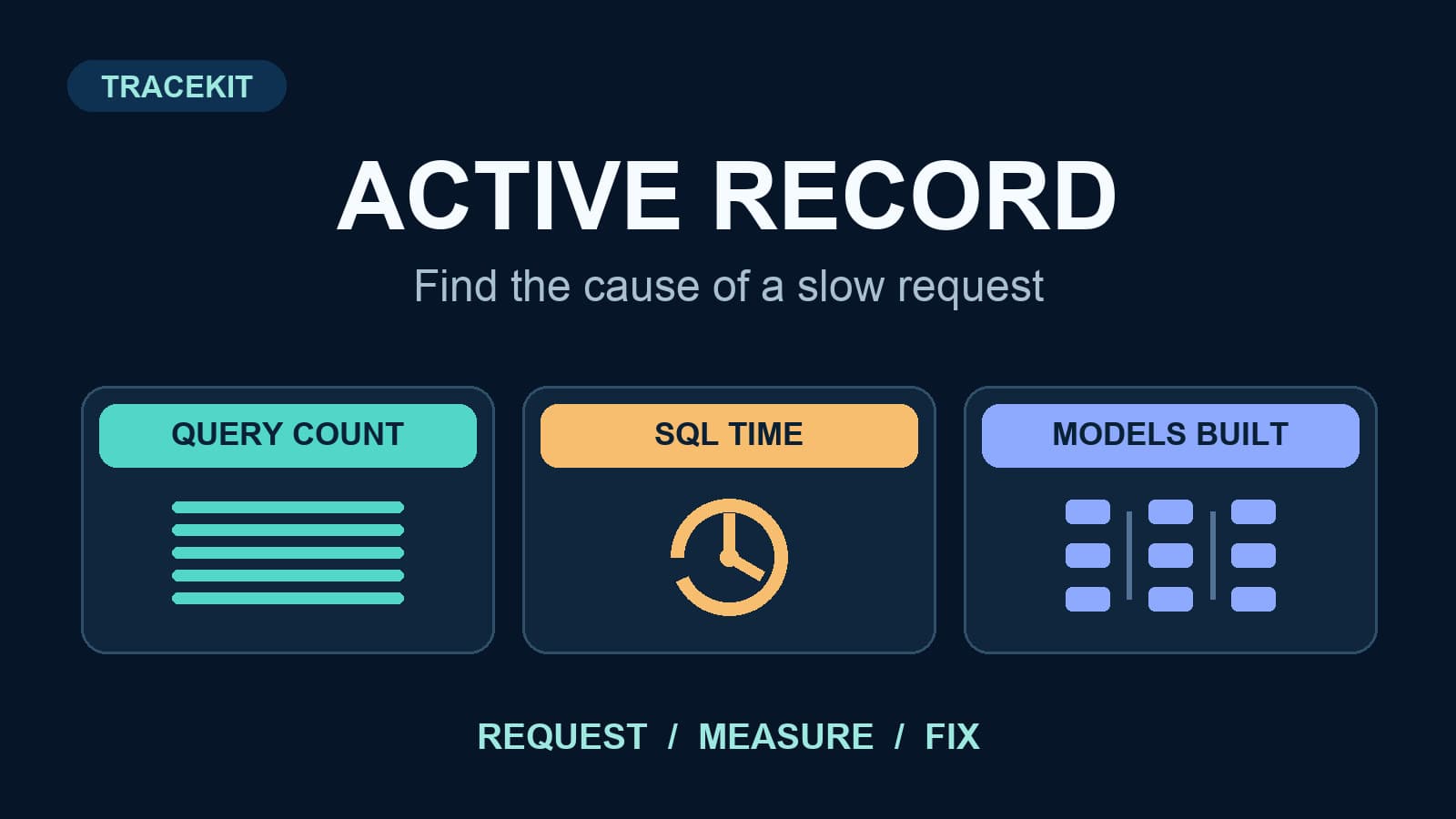
ActiveRecord Performance Monitoring in Rails
Monitor ActiveRecord query count, SQL time, and object instantiation in Rails. Use request traces to confirm production bottlenecks.
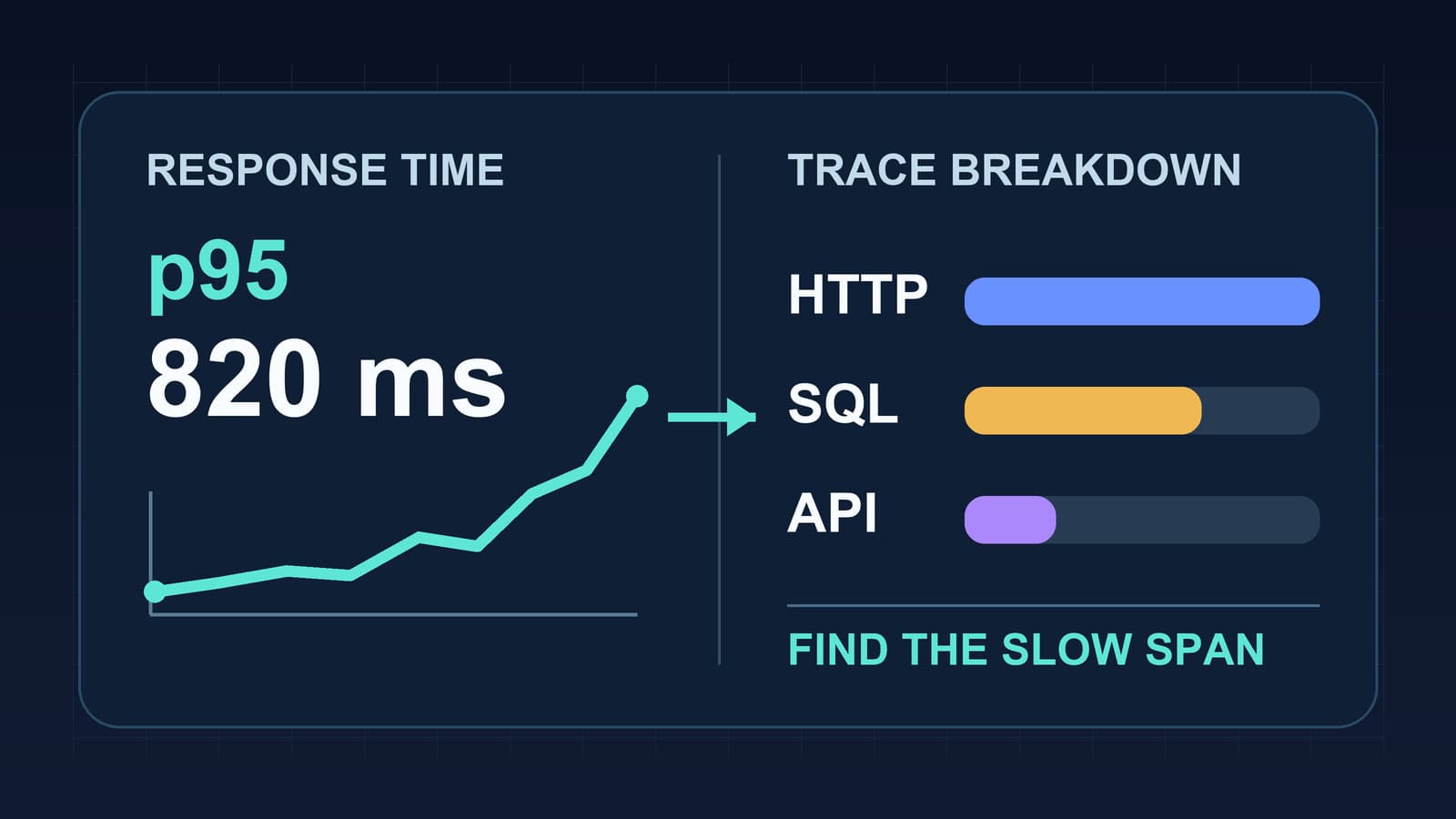
Node.js Response Time Monitoring by Route
Measure Node.js response time by route, read p95 latency with traces, and separate event loop delays from database and API waits.
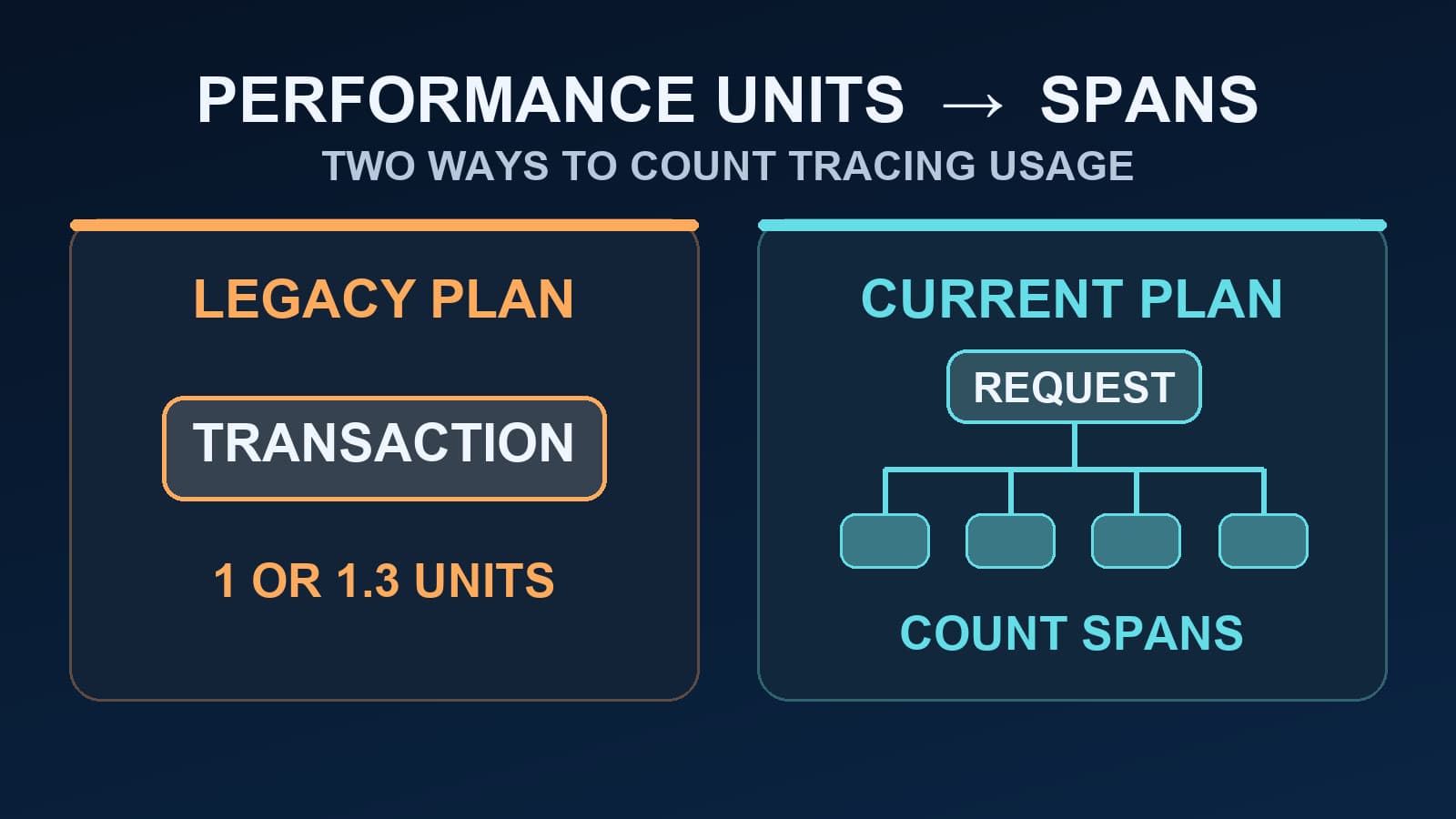
Sentry Performance Units vs Spans: What Changed?
Learn when Sentry performance units still apply, how legacy transactions were counted, and why current span quotas need a different estimate.